ClubHub User Guide
ClubHub is a powerful desktop application targets NUS CCA secretaries who need to manage varous details of many CCA member. We aim to efficiently manage members, events, and attendance. It combines the speed and precision of a Command Line Interface (CLI) with the clarity and accessibility of a Graphical User Interface (GUI). By typing simple, intuitive commands, users can perform tasks such as adding members, recording attendance, or viewing details much faster than with traditional point-and-click systems without using external servers or internet connection. This hybrid design makes ClubHub both lightweight and efficient, enabling users who type quickly to streamline their administrative work while still enjoying the visual feedback and ease of use that a GUI provides.
Target Users
ClubHub is specifically designed for NUS CCA secretaries and club administrators who need to manage the day-to-day operations of their clubs and co-curricular activities.
Who is ClubHub for?
Primary users:
- CCA Secretaries - Individuals responsible for maintaining member databases, tracking attendance, and organizing club events
- Club Administrators - Officers who need to manage club finances, monitor event budgets, and coordinate member activities
- Event Organizers - Members who plan and execute club events and need to track attendance efficiently
Why these features?
Our target users frequently need to:
- Manage large member databases - CCA secretaries often work with dozens or hundreds of members, requiring efficient contact management (
add,edit,delete,find,list) - Track event attendance - Regular events require recording who attended and who was absent (
addattendance,markattendance,unmarkattendance,viewattendees,showattendance) - Organize club events - Planning and managing multiple events throughout the semester (
addevent,deleteevent) - Handle administrative tasks - Managing club tasks and deadlines (
addtask,marktask,unmarktask) - Monitor club finances - Tracking budgets and expenses for events (
budget,setexpense) - Import/Export member data - Transferring member information between systems or creating backups (
import,export)
ClubHub addresses these needs by providing a fast, offline-capable solution that allows secretaries to efficiently manage all aspects of club administration without relying on external servers or internet connectivity.
Quick start
Ensure you have Java
17or above installed in your Computer.
Mac users: Ensure you have the precise JDK version prescribed here.Download the latest
.jarfile from here.Copy the file to the folder you want to use as the home folder for your ClubHub.
Open a command terminal,
cdinto the folder you put the jar file in, and use thejava -jar clubhub.jarcommand to run the application.
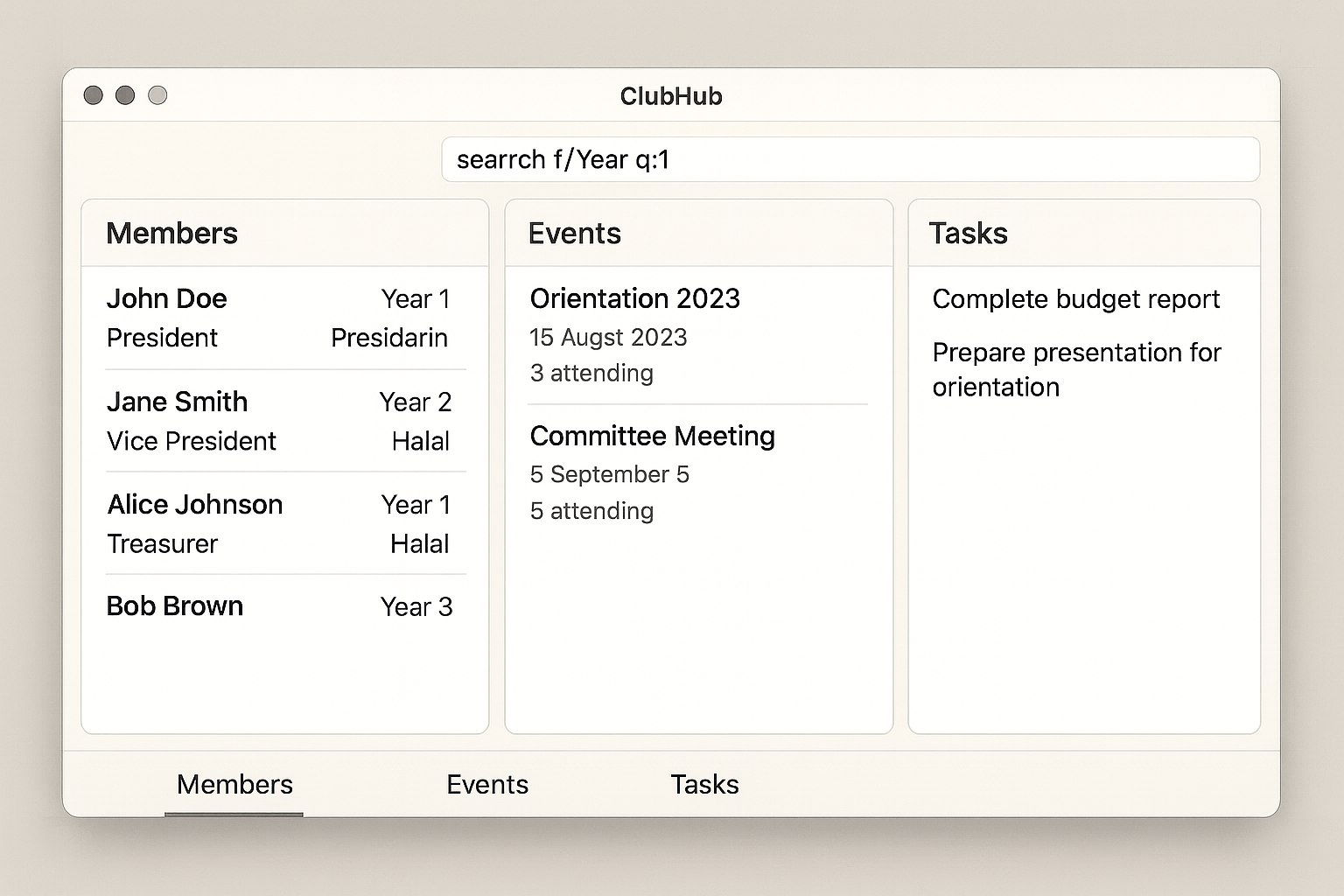
A GUI similar to the below should appear in a few seconds. Note how the app contains some sample data.
Type the command in the command box and press Enter to execute it. e.g. typing
helpand pressing Enter will open the help window.
Some example commands you can try:list: Lists all contacts.add n/John y/3 s/A1234567X e/johnd@example.com p/98765432 d/Vegetarian r/President t/leadership: Adds a club member.addevent e/Orientation2025 dt/2025-08-15 desc/NUS Freshmen Orientation: Adds an event.clear: Deletes all contacts.exit: Exits the app.
Refer to the Features below for details of each command.
Features
Notes about the command format:
Words in
UPPER_CASEare the parameters to be supplied by the user.
e.g. inadd n/NAME,NAMEis a parameter which can be used asadd n/John Doe.Items in square brackets are optional.
e.gn/NAME [t/TAG]can be used asn/John Doe t/friendor asn/John Doe.Items with
… after them can be used multiple times including zero times.
e.g.[t/TAG]…can be used ast/friend,t/friend t/familyetc.Parameters can be in any order.
e.g. if the command specifiesn/NAME p/PHONE_NUMBER,p/PHONE_NUMBER n/NAMEis also acceptable.Extraneous parameters for commands that do not take in parameters (such as
help,list,exitandclear) will be ignored.
e.g. if the command specifieshelp 123, it will be interpreted ashelp.If you are using a PDF version of this document, be careful when copying and pasting commands that span multiple lines as space characters surrounding line-breaks may be omitted when copied over to the application.
Input validation at a glance
ClubHub validates your inputs before any change is applied. If a value fails validation, the command stops, and you will see a descriptive error message. Common checks include:
- Dates must be in
YYYY-MM-DD, e.g.2024-12-01. - Student numbers follow the NUS pattern
A1234567X(one letter, seven digits, one letter). - Event descriptions must be non-empty.
- Event IDs must be non-empty and unique.
- Names cannot be blank; emails and phone numbers must follow their documented formats.
- Budget/expense amounts must be positive numbers with up to two decimal places (e.g.
123.45). However, the remaining budget can be negative if expenses exceed the budget. - CSV imports must include the compulsory columns; malformed rows are rejected with warnings. Tip: Most commands mention the exact field that failed validation so you can correct it quickly if you used the command wrongly.
Viewing help : help
Shows a message explaining how to access the help page.

Format: help
Adding a person: add
Adds a person to the ClubHub.
Format: add n/NAME y/YEAR s/STUDENT_NUMBER e/EMAIL p/PHONE d/DIETARY_REQUIREMENTS r/ROLE [t/TAG]…
Note: The NAME field should only contain alphanumeric characters and spaces. Special characters (such as /, -, ') are not allowed in names.
Tip: A person can have any number of tags (including 0)
Examples:
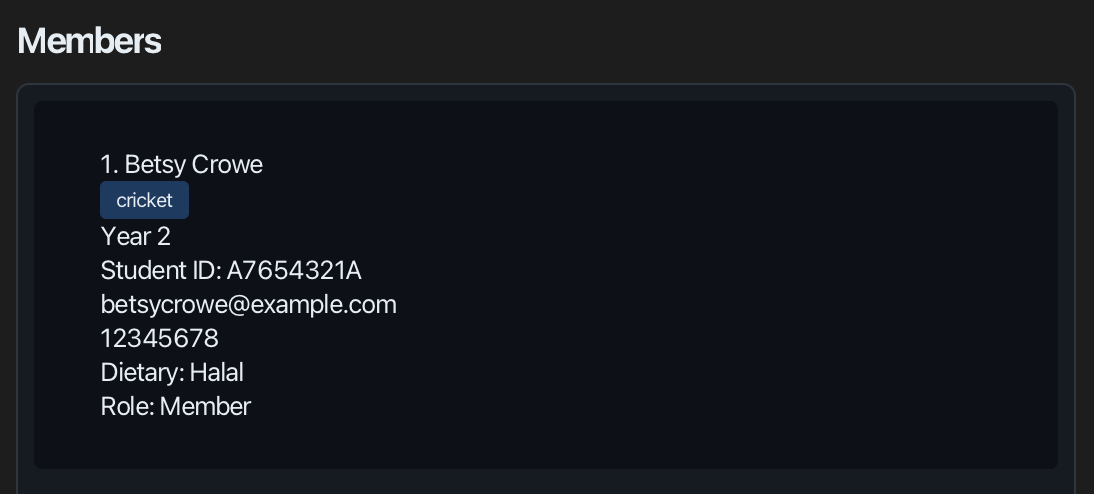
add n/John Doe y/3 s/A1234567X e/johnd@example.com p/98765432 d/Vegetarian r/Presidentadd n/Betsy Crowe y/2 s/A7654321A e/betsycrowe@example.com p/12345678 d/Halal r/Member t/cricket display format of member's contact in ClubHub:
Listing all persons : list
Shows a list of all persons in the ClubHub.

Format: list
Editing a person : edit
Edits an existing person in the ClubHub.
Format: edit INDEX [n/NAME] [p/PHONE] [e/EMAIL] [y/YEAR] [s/STUDENT_NUMBER] [d/DIETARY] [r/ROLE] [t/TAG]…
- Edits the person at the specified
INDEX. The index refers to the index number shown in the displayed person list. The index must be a positive integer 1, 2, 3, … - At least one of the optional fields must be provided.
- Existing values will be updated to the input values.
- When editing tags, the existing tags of the person will be removed i.e adding of tags is not cumulative.
- You can remove all the person’s tags by typing
t/without specifying any tags after it.
Examples:
edit 1 p/91234567 e/johndoe@example.comEdits the phone number and email address of the 1st person to be91234567andjohndoe@example.comrespectively.edit 2 n/Betsy Crower t/Edits the name of the 2nd person to beBetsy Crowerand clears all existing tags.
Locating persons by name: find
Finds persons whose names contain any of the given keywords.
Format: find KEYWORD [MORE_KEYWORDS]
- The search is case-insensitive. e.g
hanswill matchHans - The order of the keywords does not matter. e.g.
Hans Bowill matchBo Hans - Both the name and attributes can be searched.
- Only full words will be matched e.g.
Hanwill not matchHans - Persons matching ALL the attribute keywords will be returned (i.e.
ANDsearch). e.g.year 2 vegetarianwill return all the students who are bothYear 2andVegetarian
Examples:
find alexreturnsAlex Yeoh,Alex Leefind vegetarian year 2returns students who are bothvegetarianandyear 2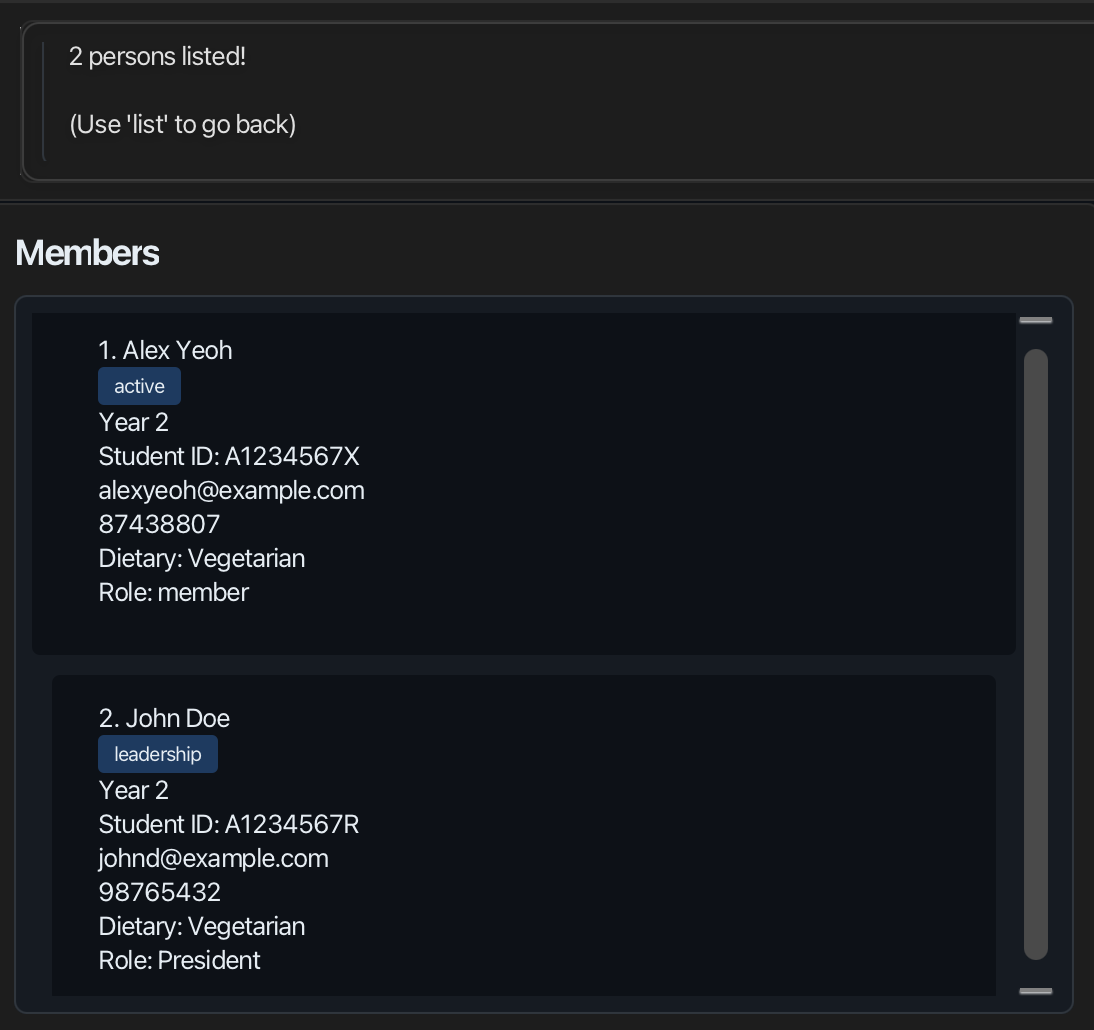
Deleting a person : delete
Deletes the specified person from the ClubHub.
Format: delete INDEX
- Deletes the person at the specified
INDEX. - The index refers to the index number shown in the displayed person list.
- The index must be a positive integer 1, 2, 3, …
Examples:
listfollowed bydelete 2deletes the 2nd person in the ClubHub.find Betsyfollowed bydelete 1deletes the 1st person in the results of thefindcommand.
Clearing all entries : clear
Clears all entries from the ClubHub.
 Format:
 clear
Exiting the program : exit
Exits the program.
Format: exit
Importing members : import
Imports member details from a .csv file into ClubHub.
The imported members will be added to the existing contact list — this command does not replace or clear existing data.
- ClubHub automatically skips duplicate members based on identical Student Numbers or Phone Numbers.
- Malformed or invalid entries in the
.csvfile will be skipped, and a summary of which lines failed to import will be shown. - Only
.csvfiles are supported — other file types (e.g..pdf,.txt) will be rejected.
Format:
import /from FILEPATH
Examples:
import /from members.csvimport /from data/backup/members_2025.csv
Notes:
- If no file path is specified, ClubHub will look for a file named
members.csvin the same directory as the application. - When a file contains both valid and invalid rows, the valid members will still be imported, and a summary of skipped entries will be displayed.
- Ensure that all required columns are present in your
.csvfile:
Name, Year, StudentNumber, Email, Phone, DietaryRequirements, Role, Tags
Exporting members : export
Exports all members currently stored in ClubHub to a .csv file.
This is useful for creating backups or transferring member data between devices.
Format:
export /to FILEPATH
Examples:
export /to members.csvexport /to data/exports/members_backup.csv
Notes:
- If no file path is specified, the exported data will be saved as
members.csvin the same directory as the ClubHub application. - The
.csvfile will overwrite any existing file with the same name.- Ensure that you do not specify a file path that points to any important or system-related files.
- If you wish to preserve previous exports, use a different file name (e.g.
members_backup.csv).
- Only
.csvextensions are supported — specifying other file formats (e.g..pdf,.txt) will result in an error. - The exported file will include all valid members in the following format:
Name, Year, StudentNumber, Email, Phone, DietaryRequirements, Role, Tags
Events : addevent, deleteevent
Manages events in the ClubHub.
Formats:
addevent e/EVENTID dt/DATE desc/DESCRIPTIONdeleteevent e/EVENTID
Examples:
deleteevent e/Orientation2025addevent e/Orientation2023 dt/2023-08-15 desc/NUS Freshmen Orientation display format of the event in ClubHub:
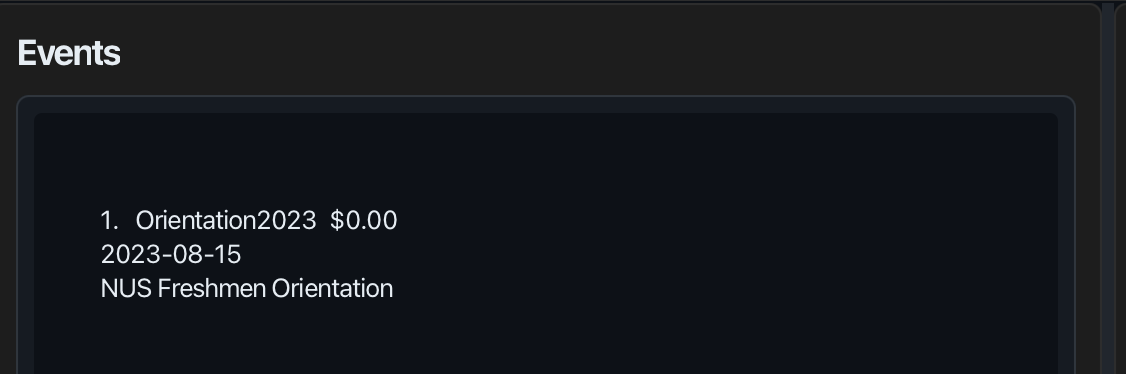
Display format: When you set an expense for an event using the setexpense command, the expense amount will be displayed beside the event title in the event list. Events without expenses set will show $0.00 or no expense indicator.
Adding attendance : addattendance
Adds the member to the attendance list.
Format: addattendance e/EVENTID m/MEMBER[/MEMBER]...
- Adds the member who is supposed to attend the event to the attendance list.
- If the member has already been added the attendance list, the command will ignore the duplicate and continue.
- Both the member and event must exist in the system.
Examples:
addattendance e/Orientation2023 m/John Doe- Adds John Doe to the attending list of Orientation2023addattendance e/Meeting2023 m/Jane Smith- Adds Jane Smith to the attending list of Meeting2023
Marking attendance : markattendance
Marks members as attended for an event.
Format: markattendance e/EVENTID m/MEMBER[/MEMBER]...
- Marks the listed members as present for the specified event.
- Each member must already exist in the attendance list for the event.
- Members who are already marked present remain present and are listed in the feedback message.
Examples:
markattendance e/Orientation2023 m/John Doe- Marks John Doe as attended for Orientation2023markattendance e/Meeting2023 m/Jane Smith- Marks Jane Smith as attended for Meeting2023
Removing attendance : removeattendance
Removes members from an event’s attendance list.
Format: removeattendance e/EVENTID m/MEMBER[/MEMBER]...
- Deletes the attendance entries for the listed members.
- Each member must already exist in the attendance list.
- Removed members no longer appear in future attendance summaries unless re-added.
Examples:
removeattendance e/Orientation2023 m/John Doe- Removes John Doe from Orientation2023’s attendance listremoveattendance e/Meeting2023 m/Jane Smith/Jake Lee- Removes Jane Smith and Jake Lee from Meeting2023’s attendance list
Unmarking attendance : unmarkattendance
Marks members as absent for an event.
Format: unmarkattendance e/EVENTID m/MEMBER[/MEMBER]...
- Each member must already exist in the attendance list.
- Members already marked absent remain absent and are reported separately in the result message.
- Members must first be added via
addattendance.
Examples:
unmarkattendance e/Orientation2023 m/John Doe- Marks John Doe as absent for Orientation2023unmarkattendance e/Meeting2023 m/Jane Smith/Jake Lee- Marks Jane Smith and Jake Lee as absent for Meeting2023
Validation reminder: Every attendance-related command halts at the first invalid value, and no partial changes are applied. For example, addattendance e/Orientation2025 m/Alice/Unknown fails because Unknown is not a known member; Alice is not added either.
Viewing attendees : viewattendees
Views the list of members who are attendees of a specific event.
Format: viewattendees e/EVENTID
- Shows all members for the specified event with their attendance status.
- If no attendees has been recorded for the event, shows "No attendees recorded yet."
Examples:
viewattendees e/Meeting2023- Shows all attendees of Meeting2023viewattendees e/Orientation2023- Shows all attendees of Orientation2023
Showing attendance summary : showattendance
Displays a summary of attendance for an event, including counts of attended and absent members. This is different from viewattendees as the command show number of absentees and attendees. For event that have many attendees, this command gives users attendance stats more quickly compared to viewattendees
Format: showattendance e/EVENTID
- Shows a summary with separate lists of members who attended and were absent.
- Displays the count for each category.
- The event must exist in the system.
Examples:
showattendance e/Meeting2023- Shows attendance summary for Meeting2023showattendance e/Orientation2023- Shows attendance summary for Orientation2023
Tasks : addtask, deletetask, marktask, unmarktask
Manages simple tasks for the club.
Formats:
addtask TITLE [dl/DEADLINE]deletetask INDEXmarktask INDEXunmarktask INDEX
Examples:
addtask Submit budget dl/2025-11-01 23:59marktask 1
Undo/Redo : undo, redo
Reverts or reapplies the most recent changes.
Formats:
undoredo
Budget tracker : budget, setexpense
The Budget Tracker helps you manage club finances by setting a global budget for a specific date range and tracking expenses for individual events. This feature allows you to monitor spending against your allocated budget and see at a glance how much you've spent and how much remains.
Formats:
budgetset a/AMOUNT from/YYYY-MM-DD to/YYYY-MM-DD- Sets a global budgetbudgetreset- Clears the current budgetbudgetreport- Displays the budget reportsetexpense INDEX a/AMOUNT- Sets the expense for an event (INDEX refers to the event's position in the event list)
Examples:
budgetset a/3000.00 from/2025-01-01 to/2025-12-31- Sets a budget of $3000.00 for the year 2025budgetreset- Clears the current budgetbudgetreport- Shows the budget report with total budget, expenses, and remaining amountsetexpense 1 a/150.00- Sets the expense for the event at index 1 (first event in the list) to $150.00. The expense will be displayed beside the event title in the UI.
Notes:
- Currency is SGD with two decimals; negative amounts are not allowed.
- The report lists only events whose date is within the budget duration (inclusive).
- The
INDEXinsetexpenserefers to the event's position in the displayed event list (starting from 1). - The remaining budget can be negative if total expenses exceed the budget amount, indicating overspending.
- Expense display: When you add a new event, it initially shows $0.00 in the event list panel. This indicates that no expense has been set yet for that event. After you set an expense using the
setexpensecommand, the expense amount will appear beside the event title in the event list panel. This allows you to quickly see the cost of each event at a glance. - The report format is:
Budget Report

Total budget: 123.45$
Duration: 2025-11-01 to 2025-11-30

EventA: 10.00$
EventB: 25.50$
EventC: 0.00$

Total spent: 35.50$
Budget remaining: 87.95$
Saving the data
ClubHub data are saved in the hard disk automatically after any command that changes the data. There is no need to save manually.
Editing the data file
ClubHub data are saved automatically as a JSON file [JAR file location]/data/addressbook.json. Advanced users are welcome to update data directly by editing that data file.
Caution:
If your changes to the data file makes its format invalid, ClubHub will discard all data and start with an empty data file at the next run. Hence, it is recommended to take a backup of the file before editing it.
Furthermore, certain edits can cause the ClubHub to behave in unexpected ways (e.g., if a value entered is outside the acceptable range). Therefore, edit the data file only if you are confident that you can update it correctly.
Archiving data files [coming in v2.0]
Details coming soon ...
FAQ
Q: How do I transfer my data to another computer?
A: Use the export and import commands.
On your current computer, run:
export /to members_backup.csv
This saves all members into a CSV file.
Move that file to your new computer and run:
import /from members_backup.csv
ClubHub will automatically load all members from the CSV file.
You do not need to manually edit or replace any internal data files.
Q: Where are exported files saved?
A: If no path is specified, exported files are saved in the same directory as the ClubHub application (project root). You can also specify a custom path, e.g.:
export /to data/members.csv
Command summary
| Action | Format |
|---|---|
| Add | add n/NAME y/YEAR s/STUDENT_NUMBER e/EMAIL p/PHONE d/DIETARY r/ROLE [t/TAG]… |
| Clear | clear |
| Delete | delete INDEX |
| Edit | edit INDEX [n/NAME] [p/PHONE_NUMBER] [e/EMAIL] [y/YEAR] [s/STUDENT_NUMBER] [d/DIETARY] [r/ROLE] [t/TAG]… |
| Find | find KEYWORD [MORE_KEYWORDS] |
| List | list |
| Import | import /from FILEPATH |
| Export | export /to FILEPATH |
| Attendance | addattendance e/EVENTID m/MEMBER[/MEMBER]...markattendance e/EVENTID m/MEMBER[/MEMBER]...unmarkattendance e/EVENTID m/MEMBER[/MEMBER]...removeattendance e/EVENTID m/MEMBER[/MEMBER]...viewattendees e/EVENTIDshowattendance e/EVENTID |
| Events | addevent e/EVENTID dt/DATE desc/DESCdeleteevent e/EVENTID |
| Tasks | addtask TITLE [dl/DEADLINE], deletetask INDEX, marktask INDEX, unmarktask INDEX |
| Undo/Redo | undo, redo |
| Budget | budgetset a/AMOUNT from/START to/END, budgetreset, budgetreport, setexpense INDEX a/AMOUNT |
| Help | help |